iPad Photoshop: Is it Really Worth It?
Many professionals rely on Adobe Photoshop for their image editing needs. The question of whether to use Photoshop on an iPad, specifically the iPad Photoshop experience, often comes up. While the promise of editing on a portable device is appealing, it’s crucial to assess its practical application for someone who uses these tools daily. My experience suggests that while iPad Photoshop offers a degree of flexibility, it’s not always a straightforward replacement for its desktop counterpart, especially for complex tasks.
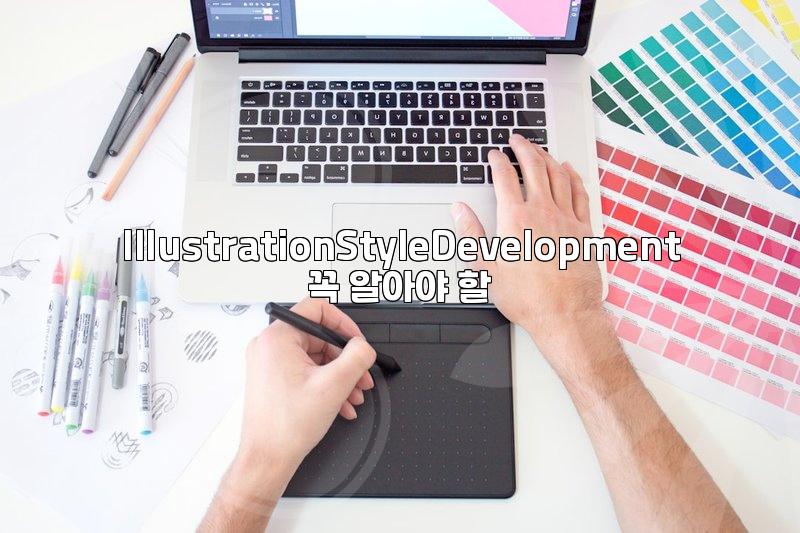
The primary draw of iPad Photoshop is its portability and the potential for a more intuitive, touch-based workflow. Imagine sketching out ideas or making quick adjustments to social media graphics while on the go. For instance, a common scenario is needing to resize an image for a banner ad or quickly add a logo to a product shot. The iPad, with its Apple Pencil, can certainly facilitate these simpler edits. The direct manipulation with the stylus feels natural for tasks like retouching blemishes or masking specific areas. However, the learning curve for advanced features can be steeper than on a desktop, and the screen real estate, even on larger iPad Pro models, can feel limiting for intricate compositions.
iPad Photoshop: A Closer Look at Workflow Differences
When comparing iPad Photoshop to its desktop version, the most significant difference lies in the depth of functionality and the overall workflow speed. On a desktop, I can easily manage multiple layers, complex file structures, and extensive brush libraries without a hitch. For example, creating a detailed composite image might involve dozens of layers, precise mask adjustments using keyboard shortcuts, and quick toggling between tools. On the iPad, while many core features are present, accessing and manipulating them can feel less fluid. Dragging and dropping elements, for instance, is simple, but performing intricate selections or applying complex filter chains might require more taps and swipes, slowing down the process. I’ve personally found that tasks requiring very fine control, like detailed photo manipulation for print or creating intricate graphic designs, are still best handled on a desktop. This isn’t to say iPad Photoshop is incapable; rather, it excels in different areas.
Consider a scenario where you need to batch process a hundred product photos for an e-commerce site. On a desktop, you’d set up an action, run it, and be done in minutes. While you can create actions on iPad Photoshop, the execution might be slower, especially if the actions involve many steps or large files. The iPad’s processing power, while impressive, can hit its limits with sustained, heavy workloads compared to a dedicated workstation. This is a trade-off: you gain portability but potentially sacrifice raw processing power and immediate access to all the shortcuts and efficiencies of a keyboard and mouse setup.
Is iPad Photoshop a True Photoshop Replacement?
This is the million-dollar question for many. For everyday tasks like cropping, resizing, basic color correction, or adding text and simple graphics, iPad Photoshop is more than capable. It’s particularly useful for content creators who need to quickly edit photos for social media platforms. For example, adding a watermark or adjusting exposure on a photo taken with your phone can be done efficiently. However, if your work involves professional-grade photo retouching, complex digital painting, or intricate graphic design requiring extensive use of panels and shortcuts, you’ll likely find iPad Photoshop lacking in certain aspects. The difference in performance and user experience can be stark, especially when dealing with large files or very demanding effects.
Think of it like this: a high-end chef’s knife is excellent for precise culinary work, but a sturdy multi-tool is better for quick fixes around the house. iPad Photoshop is a fantastic multi-tool for visual content creation on the go, but it doesn’t fully replace the specialized, high-performance chef’s knife that is desktop Photoshop for demanding professional tasks. The limitations are often in the speed of execution for complex operations and the lack of some advanced features or plugins that are standard on the desktop. For example, some older plugins or highly specialized filters might not be available or might perform differently on the iPad version. This is a crucial consideration when deciding if it fits your workflow.
Practical Considerations for iPad Photoshop Users
Beyond the software itself, the hardware plays a significant role. If you’re considering iPad Photoshop, you’ll ideally want an iPad Pro model with sufficient storage (at least 128GB, preferably 256GB or more for larger projects) and ample RAM. The Apple Pencil is almost a necessity for effective use, transforming the experience from merely functional to potentially intuitive. Without it, many of the touch-based controls and precise editing capabilities become cumbersome. The cost of an iPad Pro, combined with the Adobe Creative Cloud subscription (which includes Photoshop), adds up. It’s important to weigh this investment against the perceived benefits. For instance, if you only need to make occasional, minor edits, a more affordable iPad model or even a different app like Procreate might suffice. However, if you’re committed to the Adobe ecosystem and need on-the-go editing capabilities, the iPad Pro and Photoshop combination becomes more compelling.
When deciding, consider your typical daily editing tasks. If 80% of your work involves simple adjustments and quick graphic overlays, iPad Photoshop is a viable and often convenient option. If, however, you frequently perform 3-hour-long retouching sessions or build complex visual effects, sticking to your desktop might be the more time-efficient and less frustrating choice. There’s no single right answer; it truly depends on your specific professional needs and how much you value portability versus the full power and speed of a desktop environment. For many, a hybrid approach—using the iPad for quick edits and ideation, and the desktop for heavy lifting—proves to be the most practical solution.
For those curious about testing the waters without a full commitment, Adobe offers free trials. You can download iPad Photoshop and experiment with its features to see how it aligns with your personal workflow. If you find yourself constantly wishing for desktop features or hitting performance walls, it might be worth exploring alternatives like Pixelmator Photo, which offers powerful editing tools specifically designed for the iPad and Mac ecosystem. Ultimately, the effectiveness of iPad Photoshop hinges on realistic expectations and understanding its strengths and limitations in the broader context of visual content creation. It’s a powerful tool, but not a universal panacea for all image editing challenges.
If your work primarily involves simple graphic design and social media content creation, iPad Photoshop is likely a good fit. However, if your professional workflow demands the full power and extensive feature set of desktop Photoshop for complex tasks, you might find it too limiting. For the latter group, continuing to leverage a desktop workstation remains the more practical and time-saving approach, especially when dealing with demanding projects that require peak performance and precision.