Why Manual Background Removal Still Beats Automated Tools for Professional Results
When do you actually need professional background removal
Many users instinctively reach for automated background removal tools the moment they need to clean up an image. While these AI-driven services are improving, they often fail the moment the subject has fine details like hair or translucent fabrics. I have found that automated tools frequently smudge the edges of a subject, leading to a halo effect when placed against a new background. If you are preparing a high-resolution commercial asset, these small errors become glaringly obvious during the printing process or on high-density displays. Relying solely on algorithms might save you three minutes now, but it will cost you an hour of cleanup later when you realize the transparency mask is jagged or poorly defined.
The reality of choosing between AI and manual pathing
There is a persistent trade-off between speed and edge quality. To decide which method to use, I suggest a simple litmus test: zoom into the subject’s edges at 300 percent. If the edges are crisp and defined, automated tools work fine. If the subject has fuzzy fur, messy hair, or overlaps with a background of a similar color, manual pathing is the only way to retain integrity. Most people assume that manual selection tools in Photoshop are slow, but using the Pen tool for hard edges takes an experienced user only about five to ten minutes for a complex object. This level of precision is virtually impossible for automated engines to replicate consistently across a batch of fifty different products.
Step by step workflow for high quality object isolation
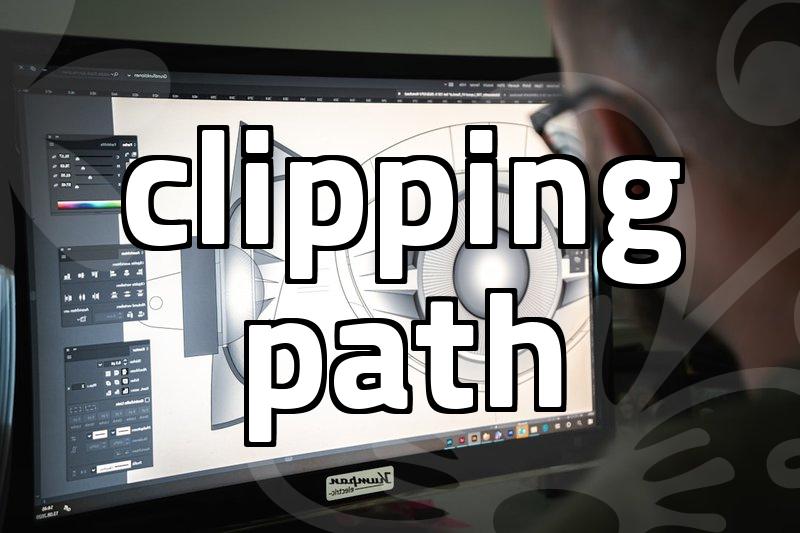
To achieve professional results, first analyze the source image for contrast. If the subject is backlit, the edges will likely be lost in shadow, meaning you should increase the exposure of your RAW file before attempting any removal. Second, use the Pen tool to trace the primary silhouette, as this creates a vector-based path that can be adjusted later if the client asks for a tighter crop. Third, refine the mask using a soft round brush set to a low opacity for the finer details like hair. This hybrid method of vector pathing for the body and brush masking for the hair strands is a standard practice that avoids the plastic-like look common in poorly edited images.
Why automatic masking fails in commercial print environments
Automated systems often rely on predictive modeling that ignores the subtle ambient light reflection on the edge of an object. When you use a free background removal app, it usually crops the image at a standard 72 DPI, which is insufficient for professional work. Print design requires 300 DPI, and at that resolution, the artifacts created by automated clipping become massive distractions. A common mistake is assuming that a quick selection will suffice for a website banner that might eventually be repurposed for a brochure or a large-scale poster. By the time you realize the file is unusable for print, the original editing session has long been closed.
Evaluating the limitations of modern selection tools
It is important to admit that even the most sophisticated software has clear boundaries. If your subject is sitting on a complex surface like a glass table, the reflection adds an impossible layer of complexity for basic masking tools. Instead of forcing a bad automated removal, it is often better to re-shoot the product or use a clipping path service for critical work. Recognizing when a tool is out of its depth is a hallmark of a professional. If you are consistently frustrated by the artifacts left behind by AI, try searching for tutorials on advanced channel masking instead of jumping to the next hyped plug-in. Spend time learning how to use the Channels panel in Photoshop to extract complex transparency, as that remains the most reliable method for challenging subjects like smoke or fine glass.